A static code can't expire — and that's the whole point
There are two kinds of QR code, and the difference decides whether the thing you print is still working in three years.
A static code has the destination written into the pattern itself. The URL, the WiFi password, the phone number — it's all physically there in the black and white squares. Nothing sits between the scanner and the data, so there is nothing to go offline, nothing to expire, and no company that has to stay in business for your poster to keep working. Everything this tool makes is static.
A dynamic code doesn't contain your link at all. It contains a short link belonging to a QR service, which redirects to wherever you've pointed it. That buys you one real advantage: you can change the destination after printing. It costs you rather more — every scan is logged by that company, the code dies the day the service does, and a good number of "free" dynamic generators are set up so the code stops working once a trial ends, which is a genuinely nasty surprise on a run of ten thousand flyers.
If you need editable destinations, use a redirect you control — a short path on your own domain — and encode that as a static code. You get the flexibility without handing your posters' fate to a third party.
Error correction: the setting most people skip
QR codes carry redundant data so they still scan when part of the pattern is dirty, scratched, or covered. How much redundancy is up to you:
| Level | Tolerates | Use it for |
|---|---|---|
| L | ~7% | Clean digital display only. Smallest, densest-looking result. |
| M | ~15% | The sensible default for screens and web pages. |
| Q | ~25% | Print — flyers, menus, business cards, labels. |
| H | ~30% | Rough conditions: packaging, outdoors, anything handled a lot. |
The tradeoff is density. Higher correction means more modules in the same square, so the individual squares get smaller — which is exactly what makes a code harder to scan in poor light. Going up a level and keeping the printed size the same can leave you worse off than you started. Move up a level and print it a little larger.
How big does it need to be?
The rule of thumb that actually holds up: the code should be about one tenth of the distance it will be scanned from.
| Scanned from | Minimum size | Typical case |
|---|---|---|
| 30 cm | 3 cm | Business card, menu, product label |
| 1 m | 10 cm | Poster, table tent, shelf display |
| 3 m | 30 cm | Shop window, wall sign |
| 10 m | 1 m | Billboard, banner, vehicle livery |
Then there's the part that breaks more codes than size ever does: the quiet zone, the empty margin around the pattern. Scanners use it to find where the code starts. The spec asks for four modules' worth — roughly the width of four of the small squares — on all four sides.
Drop a code straight onto a coloured background or crop it tight to the edge and you have removed the thing the scanner uses to locate it. This is behind a large share of "the QR code doesn't work" complaints. The SVG export includes the quiet zone; if you're placing the PNG, leave a clear white margin yourself.
PNG or SVG?
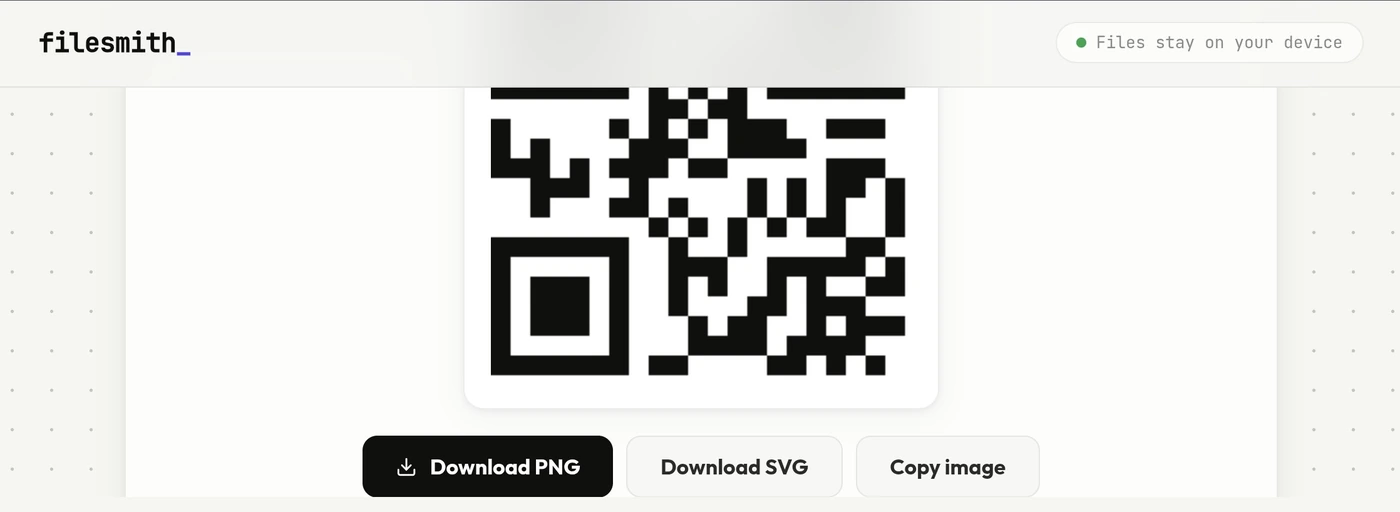
PNG for anything that stays on a screen — web pages, slides, social posts, email. It's a fixed grid of pixels, which is fine when you know the size in advance.
SVG for anything going to print. It's vector, so the same file is sharp on a business card and on a shop window, and a printer can scale it without asking you for a higher-resolution version. If you are sending artwork to anyone else, send the SVG.
Generate at a larger size than you think you need. Scaling a PNG down looks fine; scaling one up does not, and you'll want the bigger version the moment someone asks for a poster.
WiFi codes are the most underrated use
Print one, stick it by the door or on the fridge, and guests join without anyone spelling out a fourteen-character password. Both iOS and Android prompt to connect automatically on scan. It's the single most useful QR code most people will ever make, and almost nobody makes one.
Two things worth knowing. Pick the right security type — WPA/WPA2 covers essentially every modern router; WEP only applies to genuinely old hardware; "None" is for open networks with no password at all. Getting it wrong produces a code that scans and then fails to connect, which is a confusing thing to debug.
And remember what the code is: your password in plain text, in a format anyone with a phone can read. It is exactly as public as wherever you stick it. Fine on the fridge, less fine in a photo of your kitchen posted online. If you have a guest network, put that on the printed code rather than your main one.
Test it before you print a thousand
Five minutes here has saved a lot of reprints:
-
1Scan it with two different phones One iPhone, one Android. Camera apps differ more than you'd expect.
-
2Test at the real printed size Print it at final scale on plain paper. A code that scans beautifully on a monitor can fail at 2cm.
-
3Check it in bad light and at an angle Nobody scans anything straight-on under studio lighting.
-
4Keep the code dark on a light background Inverted codes — light pattern on dark — are rejected by a lot of scanners. Contrast matters more than colour.
Reading a code you can't scan
Switch to Read QR and drop in any image containing a code — a screenshot, a photo, a saved graphic — and it decodes on the spot. Useful when the code is on the screen you're already looking at, when you're on a desktop with no camera to hand, or when you want to see where a code actually points before you let a phone follow it. It detects the content type and gives you the matching action: open the link, copy the text, save the contact.