I spent an afternoon convinced I'd broken my own image editor.
The steps were simple enough. Open a photo. Resize it smaller. Change my mind, resize it back to the original dimensions. And the result was soft — noticeably, irritatingly soft. Same numbers in the width and height boxes, same picture, visibly worse. Export it and it looked worse again.
It took longer than I'd like to admit to accept the obvious: nothing was broken. The editor did the only thing it could have done. What I'd actually done was destroy most of the image and then ask for it back.
Where the pixels actually go
An image is a grid of coloured squares and nothing else. A 520 × 520 photo is 270,400 of them, each holding one colour.
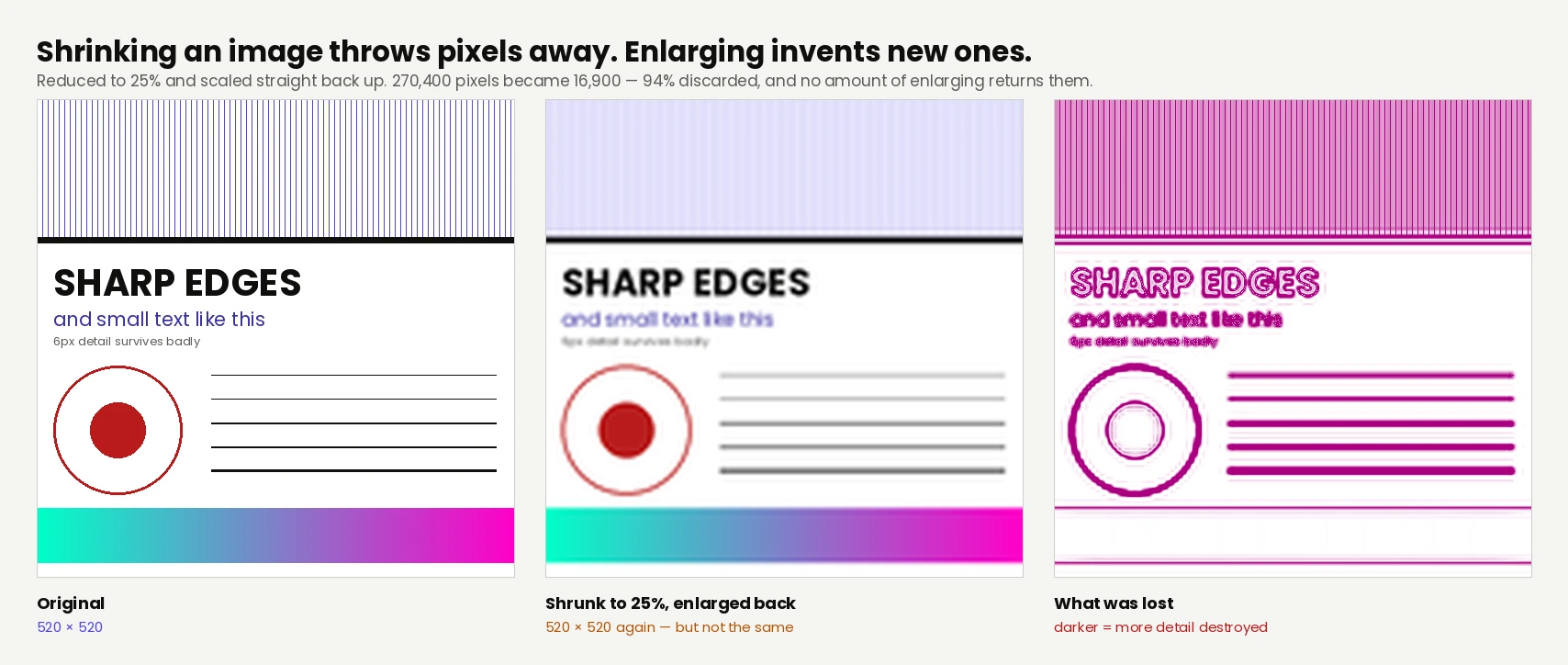
Shrink that to a quarter of its size and you're asking for a grid of 16,900 squares instead. There is no clever way to fit the old grid into the new one. The software takes each group of source pixels, averages them into a single colour, and writes that one value. Around 94% of the original squares are discarded. Not compressed, not hidden in the file, not tucked away in some reserve — gone, in the same way a shredded document is gone.
The same image, reduced to a quarter size and scaled straight back up. 270,400 pixels
became 16,900 — and the third panel is everything that didn't come back.
That third panel is the part worth sitting with. Everywhere it's dark is somewhere the picture used to hold information and now doesn't. The fine lines took the worst of it, the small text is barely legible, and the sharp edge of the circle has turned into a gradient. The smooth colour ramp at the bottom survived almost perfectly, because averaging a gradient produces roughly the gradient. Fine detail has nothing to average into.
Why enlarging can't undo it
So you type the original dimensions back in, and the software has to produce 270,400 pixels from the 16,900 it has. It does that by interpolating — looking at neighbouring pixels and inventing a plausible value for the space between them.
The word to hold onto is inventing. Interpolation isn't recovery. It has no access to what used to be there. Given a black pixel beside a white one, it produces grey in between, because grey is the reasonable guess. The original might have been a hard black-to-white edge, and that edge is now a soft ramp — which is exactly what "blurry" means in this context.
The analogy that finally made it click for me: shrinking an image is like reducing a page of writing to a one-line summary. You can expand that line back into a page, and it'll be the right length. But you're writing new sentences from the summary, not recovering the ones that were deleted. The page is the right size and the words are wrong.
Advertisement
Why the export looks worse than the screen
This is the part that convinced me something was genuinely broken, and it has a separate cause.
Editors usually show you a scaled preview. Zoom out and you're not looking at a smaller image, you're looking at the full-resolution one drawn smaller on your monitor — all the detail still present, just displayed at a size where you can't see it. That's why work looks crisp on the canvas.
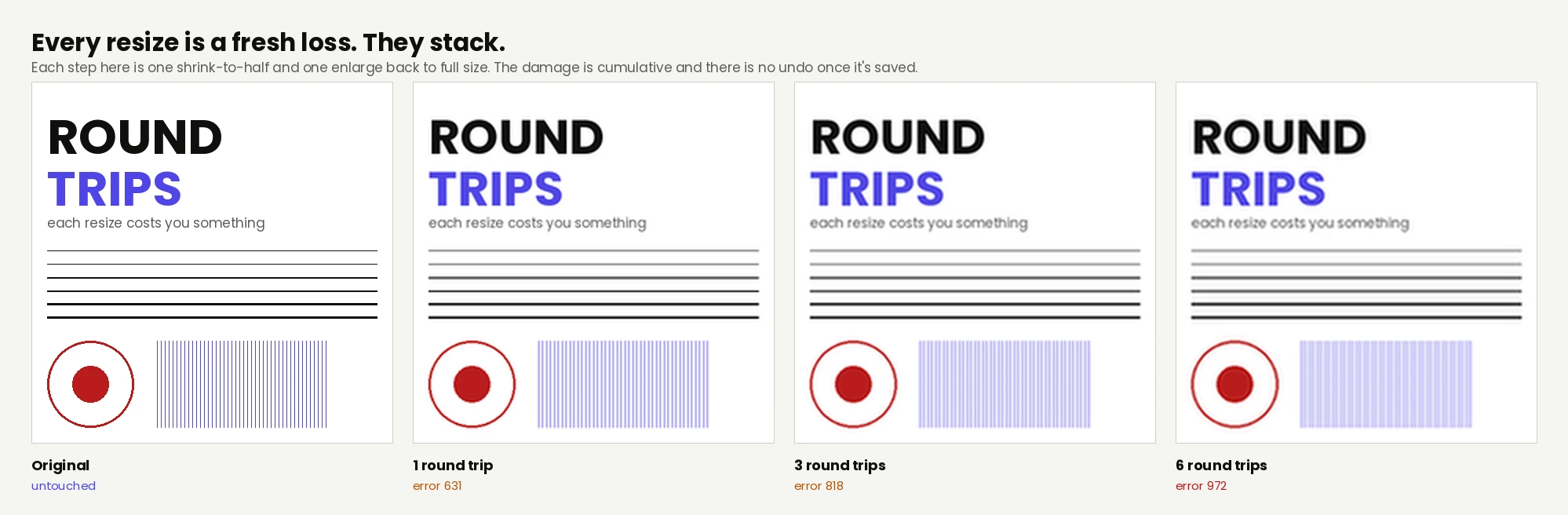
The moment you resize the layer itself rather than the view, the pixels are actually thrown away. And every subsequent resize compounds it, because each one operates on the damaged version rather than the original.
Each step is one shrink to half size and one enlargement back. Note where the damage
happens: the first round trip costs more than the next five put together.
Here's the useful detail, and it surprised me: most of the damage happens the first time. One round trip put the error at 631. Six round trips only reached 972 — the next five cycles cost less than half what the first one did. Once the fine detail is gone there's simply less left to lose, so the image doesn't degrade toward mush at a steady rate, it falls off a cliff and then drifts.
Practically, that means the damage you should worry about is the first careless resize, not the twentieth.
What about AI upscalers?
Fair question, and they're genuinely impressive. They don't interpolate — they've been trained on enormous numbers of images and can produce detail that plain enlargement never would. Eyelashes, brickwork, fabric texture, all appearing from a blurry source.
But be clear about what's happening: the model is inventing detail that is statistically plausible, not detail that was there. It has no more access to your deleted pixels than your editor did. It's making an extremely educated guess about what a photo like yours usually looks like.
For a wallpaper, a background, a print of a holiday photo, that's a fine trade and often a lovely result. For anything where the detail has to be true — a licence plate, a face you intend to identify, a document you need to read, a product photo a customer will judge — an upscaler will happily hand you a confident, sharp, entirely fictional answer. Being wrong and blurry is obvious. Being wrong and sharp is not.
What to actually do
Keep the original. Always. Not the resized copy, not the one you emailed yourself. Everything else on this list is easier if you have it.
Resize once, from the original. Need a 400px version and an 800px version? Make both from the full-size file. Don't make 800 and then shrink that to 400.
Resize last. Crop, colour-correct, retouch at full resolution, and scale down as the final step before export. Every edit you make on a downscaled file is an edit made on less information.
Only resize down. If you need bigger than your original, you don't have a resizing problem — you have a source problem, and the honest fix is a better source.
The Filesmith image editor resizes in your browser with nothing uploaded, and your original file is never modified — the resized version downloads alongside it. That won't save you from the maths, but it does mean the original is still sitting there when you change your mind.
The bottom line
Resizing down isn't an adjustment, it's a deletion. Resizing back up isn't a repair, it's a plausible guess. Nothing you can install changes that, because the information genuinely isn't in the file any more.
Keep your originals. That's the whole lesson, and it cost me an afternoon.
Need to resize something?
Your original file is never modified. Nothing is uploaded.